Shadowrocket Setup Guide
Import and Connect for the First Time
Complete the basics in five steps: add your existing details, choose Global Routing, turn on the connection, and verify the result with a real request. For iPhone and iPad. Screenshots help you locate controls; the app on your device may look different.
First get one server working with one clearly defined routing mode, then adjust other settings. Keep the original details before you start, and never post passwords, subscription URLs, or QR codes publicly.
Add Server: Add a server or import a subscription
Choose either method. Server parameters and subscription URLs go in different places; don't enter a subscription link as the Host.
Open Shadowrocket and go to Home. Locate the SERVER group and the Add Server option. If entries already exist, check where they came from so you don't mistake a similarly named entry for the server you plan to use. To enter details manually, you'll need the protocol Type, server address, port, and any required authentication details. If you only have a subscription link, follow the Subscribe steps below instead; there's no need to enter each server parameter individually.
Manual setup: choose Type, then fill in the matching fields
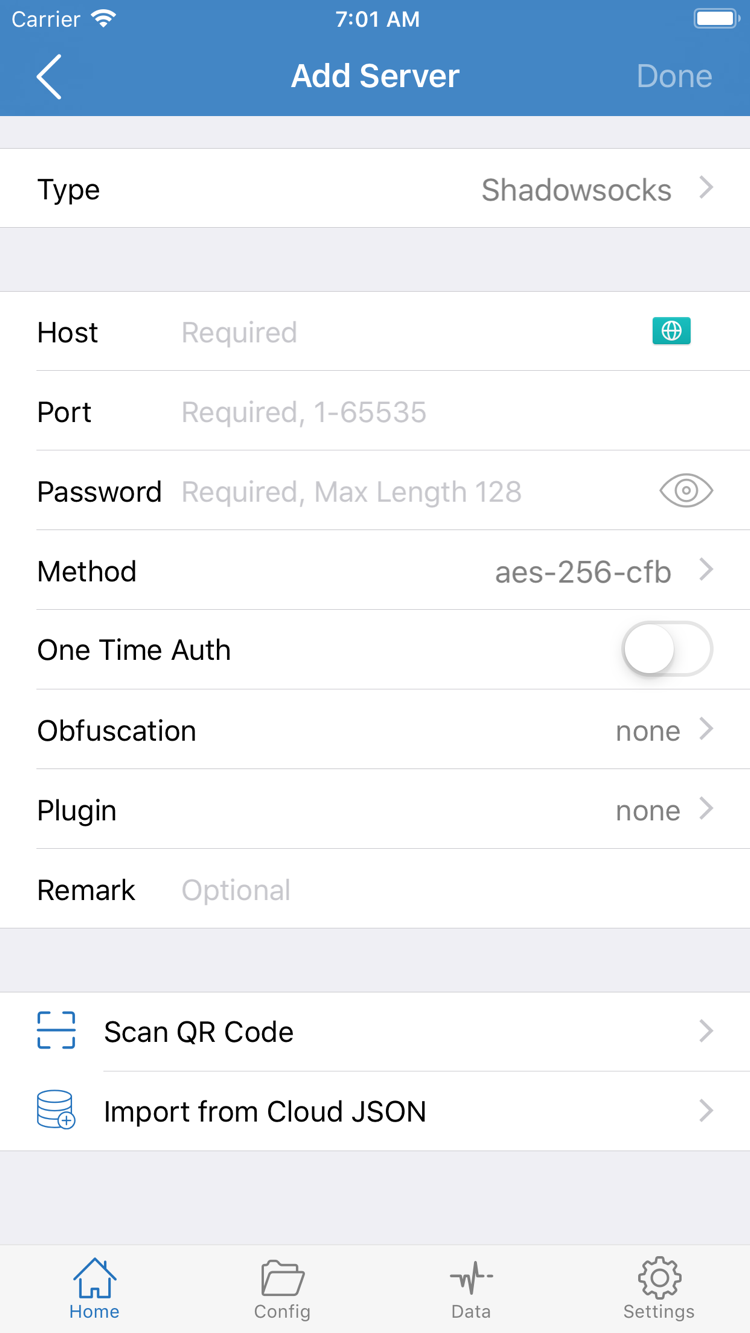
Tap Add Server. On the add screen, open Type and select the protocol that matches your server details. The available fields may change with the selected Type. The official screenshot shows one add screen with Host, Port, Password, and Method; fields are not necessarily the same for every protocol. Use your own details, check each field, and save. Don't guess at missing values.
Host is usually the server's domain name or address; enter the port number in Port. Enter Password and any other authentication details exactly as provided, checking capitalization, extra spaces, and line breaks introduced when copying. Set Method only when required by the selected protocol. Don't apply an option to a different protocol just because it appears in the screenshot. If your details include additional transport or encryption parameters, match those too; filling in only the first few fields may not be enough.
Subscribe: Import a subscription you already have
If you have a subscription link, choose Subscribe under Type in Add Server, paste the complete URL into the URL field, confirm, and save. Subscription URLs often contain account-identifying parameters, so treat them as sensitive. Don't remove anything after the question mark, and don't include quotation marks, spaces, or explanatory text added by a messaging app when copying the link. After importing, return to Home and check whether server entries appear in the corresponding group. If you see only a subscription name and no servers, check the update result.
If you have a compatible server QR code, use Scan QR Code. Import from Cloud JSON is for the corresponding JSON import method; neither option replaces every type of subscription import. If you're unsure which format you have, ask your service provider to confirm the format name before choosing an import option. See the glossary for the difference between Subscribe and Config. Don't try random fields and hope one works.
After saving, select the server you plan to use and check that its name, address, and port match. A subscription update may change the list, so check the current selection before reconnecting. At this point, the details are in the app, but that doesn't prove the connection works. Next, decide how requests should be handled before turning on the switch.
Global Routing: Choose Config, Proxy, or Direct
The server determines which connection can be used; Global Routing determines how requests are handled. Check both separately.
Return to Home and tap Global Routing to see the current mode. The three options are Config, Proxy, and Direct. Choose based on your goal: apply rules to different sites, temporarily test the selected server, or connect directly. A mode changes how requests are handled; it won't fix an incorrect password or fill in missing server details.
Config: Check which rules are active
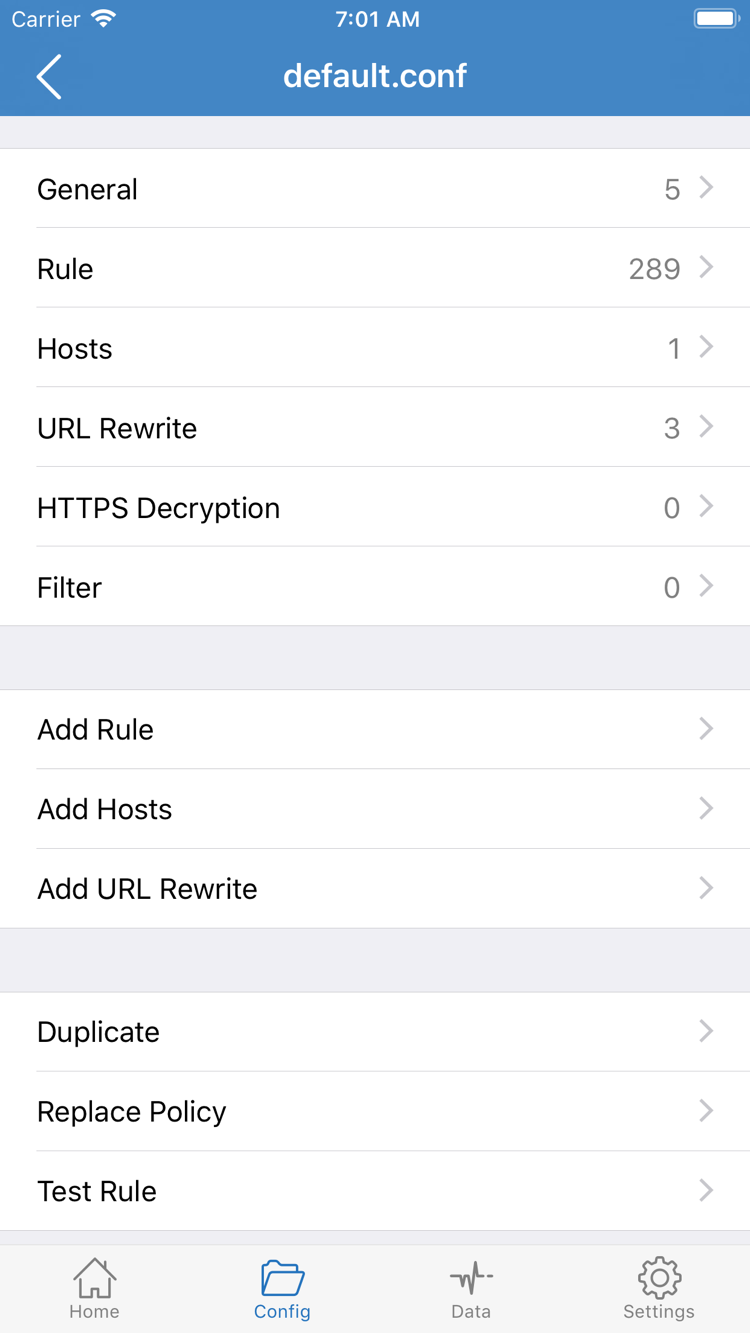
Config uses the rules in the active configuration to decide how requests are handled. If you have your own configuration file, open the Config page and confirm that the file you intend to use is selected, not merely listed. The editor has sections such as General, Rule, and Hosts. For this guide, focus on how Rule relates to the active configuration; there's no need to change URL Rewrite or HTTPS Decryption at the same time.
Rules in Rule are evaluated in order. A request matched by an earlier rule usually won't reach a later fallback rule. The example below sends example.com and its subdomains to PROXY, while unmatched requests go to DIRECT. It's an example of two rules, not a complete configuration, and contains no server details. Keep a copy before editing, then save once you've confirmed the syntax and policies are valid. Check which file is active afterward.
[Rule]
DOMAIN-SUFFIX,example.com,PROXY
FINAL,DIRECT
Proxy and Direct: Use each mode for a specific purpose
Proxy sends requests handled in this mode through the proxy path. It can help you briefly check whether the selected server can access a site, but keep system and configuration bypass settings in mind. Direct connects the relevant requests without using the selected proxy server. Selecting a server on Home doesn't mean traffic uses it in Direct mode, so choose a mode that matches what you want to verify.
If you don't know which policy your current rules apply to a site, note the current mode, temporarily switch to Proxy for comparison, then restore the original setting. If the site works in Proxy but not Config, check the rules and DNS first; there's no need to immediately reimport the subscription. For more on rules, DNS, and Settings, see Settings Reference. Once you've confirmed the mode, continue to system authorization and connection.
Home: Connect and check the status
Confirm the server and mode before turning on the switch at the top. System authorization and server authentication are two different things.
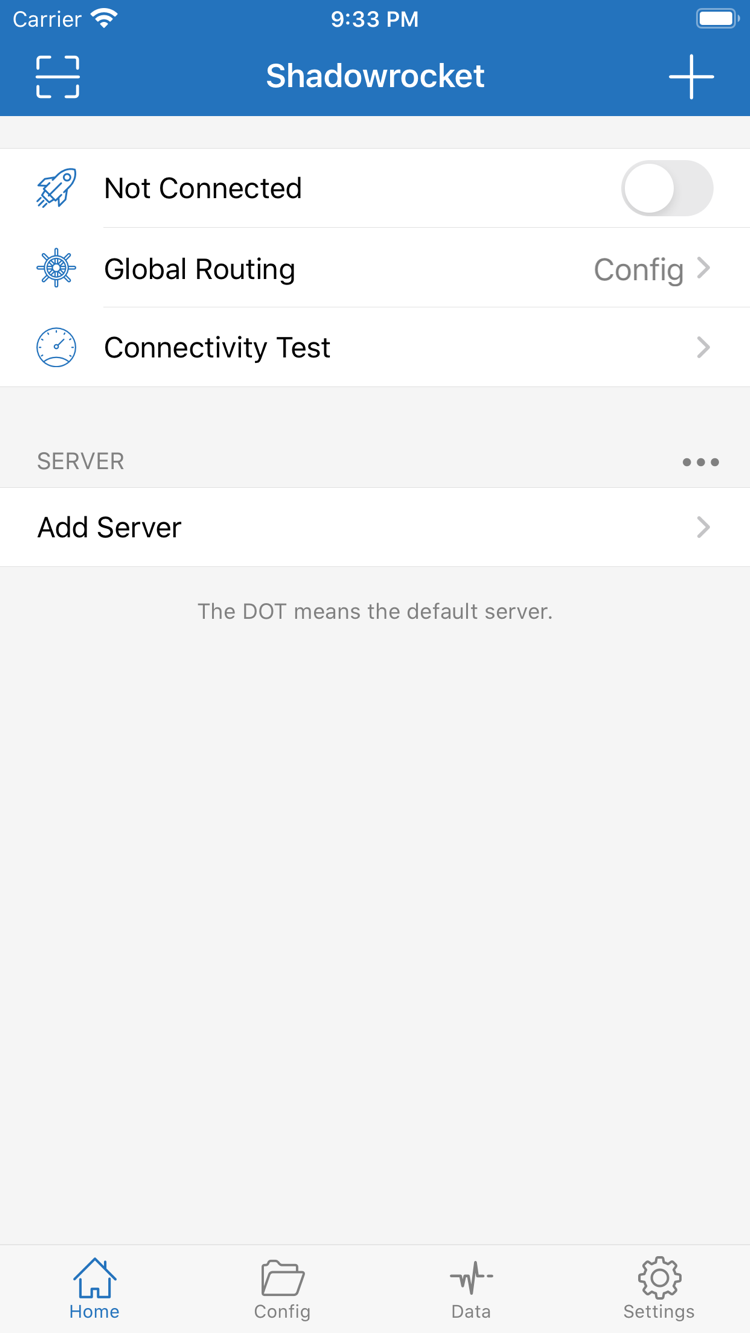
After completing the first two steps, return to Home. Check the server you'll use in the SERVER group and the mode shown in Global Routing. Recheck both if you've just updated a subscription, switched configurations, or returned from another screen. When everything is correct, tap the connection switch at the top. Not Connected in the screenshot means the app's system connection hasn't been established.
The first time you connect, the system may ask to add a VPN configuration. This allows Shadowrocket to create the corresponding network configuration in the system; it isn't asking you to enter the server password again. Read the app name and description in the system prompt, make sure it relates to the action you're taking, then approve it and follow the device prompts to finish authorization. If you cancel, return to Home and try again. Don't assume a failure caused by missing authorization means the subscription is invalid.
After authorization, return to the app and check whether the status at the top has changed. If the switch turns off immediately or still shows Not Connected, first confirm that system authorization was completed. Then check whether another active VPN connection is interfering. If the relevant configuration was removed from the system, you may need to authorize again the next time you connect. Follow the prompts on each new device; authorization on an old device doesn't carry over.
On iPad, start by checking Home, SERVER, and Global Routing too. The layout and location of system prompts may differ, but the order remains the same: add details, choose a mode, authorize, and verify. If possible, stay on the same local network while testing. Switching between Wi-Fi and cellular at the same time as the connection switch makes it harder to tell what caused a change in results.
A switch that stays on only indicates that the app's system connection has started. It doesn't prove that every server, rule, or site is working. Keep the current selection and continue with Connectivity Test and a real request. If something goes wrong, you can then trace the steps you've already confirmed instead of repeating every setting from scratch.
Connectivity Test: Test the server, then check site access
Check three things separately: the switch is on, the server responds to a test, and the site you want to visit is accessible.
Tap Connectivity Test on Home and check whether the selected server returns a result. What the test means depends on options such as Test Method in Settings. A response doesn't mean every request will succeed, and no response alone doesn't prove the server is unusable in every situation. Keep the test method unchanged and note whether no entries return results or only the selected entry fails. Don't compare results from different test methods as if they were equivalent.
Next, open a browser and visit a site whose expected routing behavior you know, then visit the site you actually want to verify. Don't rely on a page that's been open for a long time; cached content may still appear without a new request. Reload the page and check that content requiring a network connection finishes loading. Keep the server, Global Routing mode, and local network unchanged during testing so the results are comparable.
With Config, first confirm which rule should match the target domain. A site loading doesn't by itself prove that it went through PROXY; the domain may match DIRECT instead. To check further, use the connection records or logs available in the app to verify the domain and handling policy. Logs may contain browsing and server details, so don't share them publicly without reviewing them.
If the target site loads both with the connection on and off, first check whether you're using Direct or whether Config sends that domain to DIRECT. If only some images, login requests, or embedded pages fail, remember that one site may access several domains; a rule for the main domain may not cover every resource. Note the specific failing domain or behavior and check the rules instead of broadening them all at once.
Once real-world access works as expected, keep these verified settings. When you later switch servers or adjust rules, change one thing at a time and retest using the same method. If the results are unexpected, follow the checks below to locate the failure before changing settings.
Settings and common troubleshooting checks
Keep a recoverable starting point. Check input and routing mode first, then DNS, test method, and diagnostic records.
Import failed or server test failed
If importing a subscription doesn't create entries, first check that the URL is complete and was pasted into the Subscribe URL field. Then check your subscription status and the update message. A subscription URL opening successfully doesn't mean its response is in the format the app needs. If it returns a login or information page, ask your service provider to confirm the correct URL and format. Don't submit URLs containing authentication parameters to public testing tools.
If a manually added server fails, return to its Add Server edit screen and compare Type, Host, Port, and authentication fields against the original details. Pay particular attention to the protocol, spaces in the password, and any missing extra parameters. If the group has other servers, you can use an existing entry for comparison. Don't switch entries and change Test Method at the same time, or you won't know which change affected the result.
The switch is on, but sites still won't load
First make sure the current mode isn't Direct, then check the policy for the target domain in Config. If you temporarily switch to Proxy for comparison, note the original mode and restore it when you're done. If Proxy works but Config doesn't, focus on rule order, the active file, and the fallback policy. If neither works, continue by checking server details, the local network, and DNS.
DNS issues may prevent domain names from resolving or affect only some sites. First note the current DNS settings in your configuration; don't add several unknown addresses at once. Keep other settings unchanged, check whether the active configuration overrides relevant options, and if needed test items one at a time using the Settings Reference. Connection failures may also occur at the local network level. If possible, compare with another local network, but do this separately from switching servers.
Open Settings only to investigate a specific issue
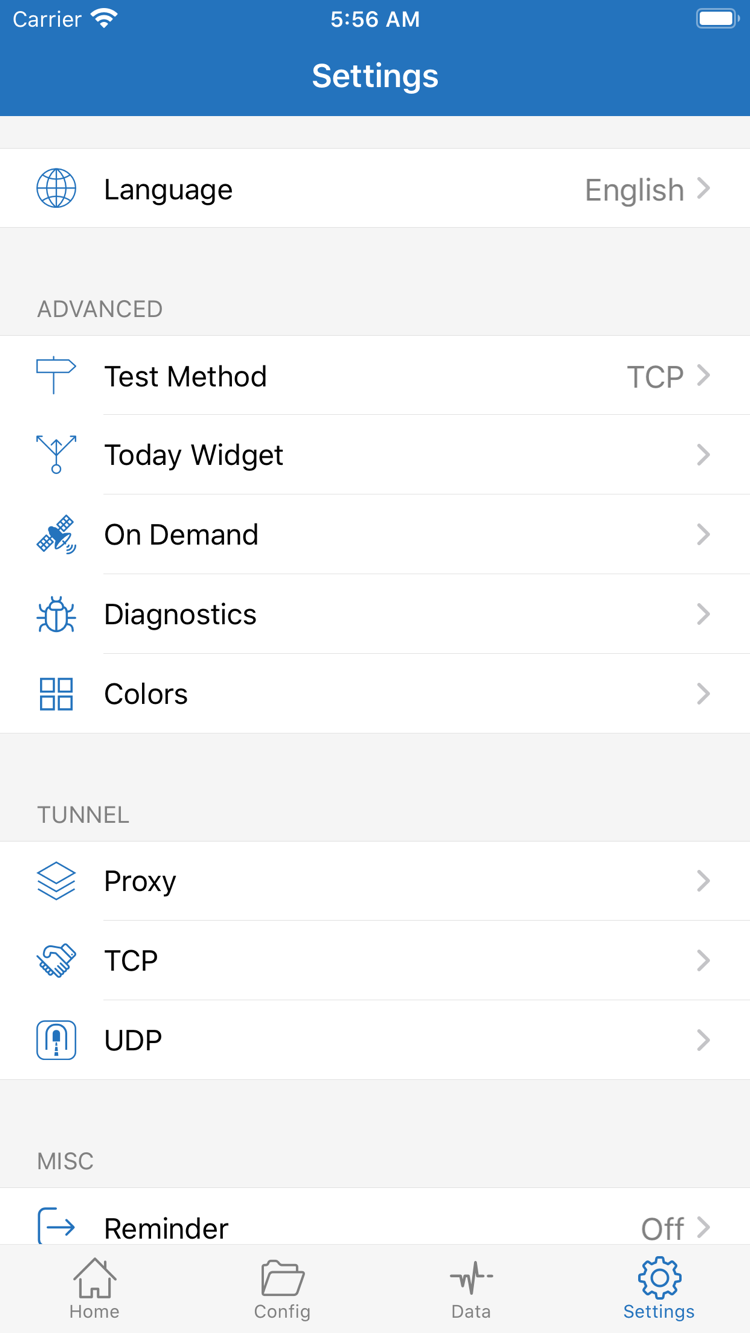
Settings includes options such as Test Method, On Demand, Diagnostics, Proxy, TCP, and UDP. Each serves a different purpose; they aren't a checklist of options to enable. Test Method affects how tests are run. On Demand controls connection triggers, so check whether it's affecting the switch during your first manual test. Diagnostics can help narrow down problems. Don't change ports, protocol settings, and automatic connection conditions all at once just to see what happens.
If you need diagnostic information, reproduce the issue once, then note when it happened, the current mode, selected server, and specific symptoms. Before sharing logs or screenshots, remove subscription URLs, passwords, authentication parameters, and unnecessary browsing records. “It fails in Config but works in Proxy” is more useful for troubleshooting than “It won't connect.” Restore temporary changes after testing and keep a copy of the final configuration that you confirmed works.
The basic workflow is now complete: your details are available and verified, the mode matches your goal, the system connection starts, and real requests have been checked. If an English setting is unclear, check the glossary. For specific purchase, import, or connection questions, see Frequently Asked Questions. Explore advanced settings after the basic connection is stable; you don't need to configure every feature on your first try.